


如何在 C# 中为 PLCnext Control gRPC 服务器创建客户端
固件版本 2022.0 LTS 在 AXC F 1152 和 AXC F 2152 设备上引入了 gRPC 服务器。此 gRPC 服务器为客户端应用程序提供了一种访问 PLCnext 控制设备上的 RSC 服务的方法。客户端应用程序可以是:
- 以任何支持 gRPC 的语言编写。
- 在任何地方运行 - 在 PLCnext 控制设备上本地运行,或在远程机器上运行*。
- 托管在 OCI 容器中。
(* 远程访问将从固件版本 2022.3 开始提供)
PLCnext 控制设备中 gRPC 服务器的一般信息可在 PLCnext 信息中心获得。
本文介绍如何使用 C# 创建一个简单的 gRPC 客户端应用程序,在 PLCnext 控制设备上运行。
先决条件
下面的程序使用:
- AXC F 2152 运行固件版本 2022.0.3 LTS 或更高版本。
- PLCnext Engineer 版本 2022.0.1 LTS 或更高版本。
- Visual Studio 2019(任何版本)。
- 此 Makers 博客文章中介绍的概念:如何使用 C# 创建简单的 PLCnext 控制台应用程序
- gRPC 服务器的 protobuf 定义文件,位于 PLCnext/gRPC Github 存储库的 protobuf 目录中。
- 设备状态 RSC 服务。
- 数据访问 RSC 服务。
程序
1. 使用Web管理页面,确认名为GRPC LOCAL SERVER的服务已启动。
2. 为您的目标设备创建一个新的 PLCnext Engineer 项目。这个项目应该有:
- 一个程序,其 OUT 端口变量称为 AI1,类型为 INT。
- 该程序的一个实例,称为 MainInstance1。
3.将PLCnext Engineer工程发送到目标设备。
4. 在 Visual Studio 中,按照之前 Makers 博客文章中描述的步骤 1-3 创建一个空的 C# 控制台应用程序。
5. 在 Project => Property 窗口中,将项目 Target framework 设置为“.NET 5.0”。
6. 在解决方案资源管理器中,右键单击解决方案,选择“Manage NuGet Packages for Solution...”,然后安装以下 NuGet 包:
- Grpc.Tools
- Grpc.Net.Client
- Google.Protobuf
7. 将包含 protobuf 定义文件的 protobuf 文件夹复制到项目源文件夹中。 Protobuf 是用于描述 gRPC 服务的接口定义语言 (IDL)。
8. 在项目配置文件中,为将在项目中使用的服务添加对 .proto 文件的引用。项目配置的 ItemGroup 部分现在看起来像这样:
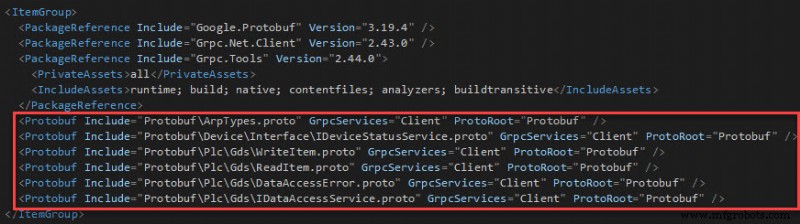
9. 用这段代码替换项目.cs文件的内容(可能需要改命名空间名):
using System;
using System.Net;
using System.Net.Http;
using System.Net.Sockets;
using System.Threading;
using System.Threading.Tasks;
using System.IO;
using Grpc.Net.Client;
using Arp.Device.Interface.Services.Grpc;
using Arp.Plc.Gds.Services.Grpc;

namespace ConsoleApp1
{
	class Program
	{
		static void Main()
		{
			// The code to connect to a Unix Domain Socket is from:
			// https://docs.microsoft.com/en-us/aspnet/core/grpc/interprocess?view=aspnetcore-6.0

			var udsEndPoint = new UnixDomainSocketEndPoint("/run/plcnext/grpc.sock");
			var connectionFactory = new UnixDomainSocketConnectionFactory(udsEndPoint);
			var socketsHttpHandler = new SocketsHttpHandler
			{
				ConnectCallback = connectionFactory.ConnectAsync
			};

			// Create a gRPC channel to the PLCnext unix socket
			using var channel = GrpcChannel.ForAddress("http://localhost", new GrpcChannelOptions
			{
				HttpHandler = socketsHttpHandler
			});

			// Create a gRPC client for the Device Status Service on that channel
			var grpc_status_client = new IDeviceStatusService.IDeviceStatusServiceClient(channel);

			// Create a gRPC client for the Data Access Service on that channel
			var grpc_data_client = new IDataAccessService.IDataAccessServiceClient(channel);

			// Create an item to get from the Device Status Service
			// Item identifiers are listed in the PLCnext Info Center:
			// https://www.plcnext.help/te/Service_Components/Remote_Service_Calls_RSC/RSC_device_interface_services.htm#IDeviceStatusService

			var item = new IDeviceStatusServiceGetItemRequest();
			item.Identifier = "Status.Board.Temperature.Centigrade";

			// Create a variable to get from the Data Access Service
			var data = new IDataAccessServiceReadSingleRequest();
			data.PortName = "Arp.Plc.Eclr/MainInstance1.AI1";

			// Response variables
			IDeviceStatusServiceGetItemResponse grpc_status_response;
			IDataAccessServiceReadSingleResponse grpc_data_response;

			// Endless loop
			while (true)
			{
				// Request the item from the Device Status Service
				grpc_status_response = grpc_status_client.GetItem(item);

				// Request data from the Data Access Service
				grpc_data_response = grpc_data_client.ReadSingle(data);

				// Report the results
				var temperature = grpc_status_response.ReturnValue.Int8Value;
				var ai1 = grpc_data_response.ReturnValue.Value.Int16Value;

				Console.WriteLine("Board Temperature = " + temperature + "°C");
				Console.WriteLine("MainInstance1.AI1 = " + ai1);

				// Wait for 1 second
				Thread.Sleep(1000);
			}
		}
	}

	public class UnixDomainSocketConnectionFactory
	{
		private readonly EndPoint _endPoint;

		public UnixDomainSocketConnectionFactory(EndPoint endPoint)
		{
			_endPoint = endPoint;
		}

		public async ValueTask<Stream> ConnectAsync(SocketsHttpConnectionContext _,
			CancellationToken cancellationToken = default)
		{
			var socket = new Socket(AddressFamily.Unix, SocketType.Stream, ProtocolType.Unspecified);

			try
			{
				await socket.ConnectAsync(_endPoint, cancellationToken).ConfigureAwait(false);
				return new NetworkStream(socket, true);
			}
			catch
			{
				socket.Dispose();
				throw;
			}
		}
	}
}
10. 在解决方案资源管理器中,右键单击解决方案并打开终端。
11. 在终端中,执行以下命令:
dotnet build ConsoleApp1.csproj
dotnet publish -c RELEASE -r linux-arm .\ConsoleApp1.csproj -o MyApp
... 其中 ConsoleApp1 是解决方案的名称,MyApp 是应用程序将发布到的输出目录的名称。如果需要,应用程序也可以在 DEBUG 模式下发布。
12. 使用(例如)scp 或 WinSCP 将输出目录及其所有内容复制到 PLC。
scp -r MyApp admin@192.168.1.10:~
13. 使用(例如)ssh 或 PuTTY 在 PLC 上打开一个 shell 会话。
14.确保可执行文件有执行权限:
$ chmod a+x /opt/plcnext/MyApp/ConsoleApp1
15. 运行应用程序:
$ /opt/plcnext/MyApp/ConsoleApp1
输出应该类似于:
Board Temperature = 50°C
MainInstance1.AI1 = 0
Board Temperature = 50°C
MainInstance1.AI1 = 0
Board Temperature = 50°C
MainInstance1.AI1 = 0
Board Temperature = 50°C
MainInstance1.AI1 = 0
16. 在 PLCnext Engineer 中,上线并更改 AI1 变量的值。应用报告的值应该会改变。
参考资料和其他资源
1. .NET Core ❤ gRPC
2. 使用.NET客户端调用gRPC服务
3. gRPC 有用资源的精选列表
工业技术